Raylib and Webcam HOW?!
You can do a lot of fun stuff with Raylib and a camera. Look at this. This is an AI roast photo booth. This is part of the YouTube video I made. https://youtube.com/@meatcorpsofficial
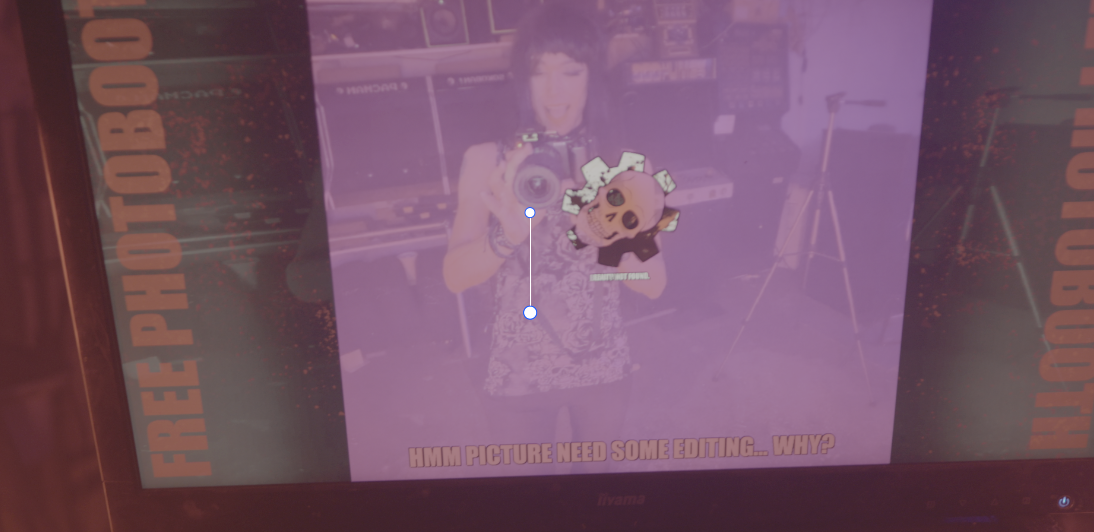
Well, Raylib does not support this out of the box. So, we need another library to handle webcam input. One such library is OpenCV, which can be used in conjunction with Raylib to capture and process webcam input.
Pre-requisites
- Basic understanding of C#
- Basic understanding of raylib-cs. To get started, check out: Getting started
- .NET 10
First step create a new project and install the correct dependencies
Create a new dotnet10 console project in your favorite IDE.
install the following nuget packages: - Raylib-cs - OpenCVSharp5
Also allow unsafe code. If you don't know how. I have the example below.
For the correct nuget package look here: https://github.com/shimat/opencvsharp#quick-start
Your project file should look something like this (This example is written on a Mac):
<Project Sdk="Microsoft.NET.Sdk">

    <PropertyGroup>
        <OutputType>Exe</OutputType>
        <TargetFramework>net10.0</TargetFramework>
        <ImplicitUsings>enable</ImplicitUsings>
        <Nullable>enable</Nullable>
        <AllowUnsafeBlocks>true</AllowUnsafeBlocks>
    </PropertyGroup>

    <ItemGroup>
      <PackageReference Include="OpenCvSharp5" Version="5.0.0.20261003" />
      <PackageReference Include="OpenCvSharp5.runtime.osx.arm64" Version="5.0.0.20261003" />
      <PackageReference Include="Raylib-cs" Version="8.1.0" />
    </ItemGroup>

</Project>
The code!
Here is the full code example. Later I will explain the most important parts.
using OpenCvSharp;
using Raylib_cs;

// Reuse the Mats instead of allocating new ones every frame.
using var rgbaFrame = new Mat();
using var frame = new Mat();

// Create the OpenCV capture device. Index = 0 means the default webcam device.
using var capture = new VideoCapture(0);

// Request the desired capture settings.
// The webcam/backend needs to support these values.
capture.Set(VideoCaptureProperties.Fps, 30);
capture.Set(VideoCaptureProperties.FrameWidth, 1920);
capture.Set(VideoCaptureProperties.FrameHeight, 1080);

// We need to after it if we have a valid texture to show
var gotValidTexture = false;

// Let's fire up raylib!
Raylib.InitWindow(1920, 1080, "Hello webcam!");

// Create our empty texture. By temporary create an image.
var image = Raylib.GenImageColor(
    capture.FrameWidth,
    capture.FrameHeight,
    Color.Black
);

// Convert the image to a texture. So, it will go from CPU -> GPU
var webcamTexture = Raylib.LoadTextureFromImage(image);

// After loading it to the video memory. We don't need the image anymore.
Raylib.UnloadImage(image);

// We need to make a task for capturing the frame. Otherwise, it will block the game loop.
Task<bool>? captureTask = null;

while (!Raylib.WindowShouldClose())
{
    // Is the current task completed so we have a new frame available?
    if (captureTask?.IsCompletedSuccessfully ?? false)
    {
        if (captureTask.Result)
        {
            // It's important to convert from BGR to RGBA. BGR is what OpenCV works with by default.
            Cv2.CvtColor(
                frame,
                rgbaFrame,
                ColorConversionCodes.BGR2RGBA
            );

            // Now we have a proper RGBA frame. Let's update the texture!
            unsafe
            {
                Raylib.UpdateTexture(
                    webcamTexture,
                    (void*)rgbaFrame.Data
                );
            }

            // Let the draw loop know we have a frame!
            gotValidTexture = true;
        }
    }

    // Start a new task if it's completed or never started at all. We do not await. This way we prevent blocking
    if (captureTask == null || captureTask.IsCompleted)
    {
        captureTask = Task.Run(GetFrame);
    }

    Raylib.BeginDrawing();
    Raylib.ClearBackground(Color.Black);

    if (!gotValidTexture)
        Raylib.DrawText("Waiting for frame...", 10, 10, 32, Color.Red);
    else
    {
        // Draw the frame :D
        Raylib.DrawTexture(webcamTexture, 0, 0, Color.White);
        Raylib.DrawFPS(10, 10);
    }


    Raylib.EndDrawing();
}

// Clean up!
Raylib.UnloadTexture(webcamTexture);
Raylib.CloseWindow();

// Create the task itself which it's just a shell for the capture read.
bool GetFrame()
{
    return capture.Read(frame);
}
Why a background task?
Because capture.Read(frame) can block the game loop. Depending on the platform and camera. So, the trick here is to create a task when it's completed or never started at all. Then we will check on each game frame if the task is completed. Then we can use the frame.
We need color conversion before we can update the texture!
OpenCV works with BGR (Blue-Green-Red 8 bits) by default. But Raylib use (Red-Green-Blue-Alpha 8 bits) Luckily, OpenCV has a function to convert from BGR to RGBA. Like this:
Cv2.CvtColor(
    frame,
    rgbaFrame,
    ColorConversionCodes.BGR2RGBA
);
Then we can update the texture with the new frame. By directly using the pointer to the frame data. Like this:
unsafe
{
    Raylib.UpdateTexture(
        webcamTexture,
        (void*)rgbaFrame.Data
    );
}
Fun stuff to explore. Here are some ideas:
- You can integrate local AI models from OpenCV. You can, for example, detect faces or emotions.
- You can use OpenCV to do some image processing.